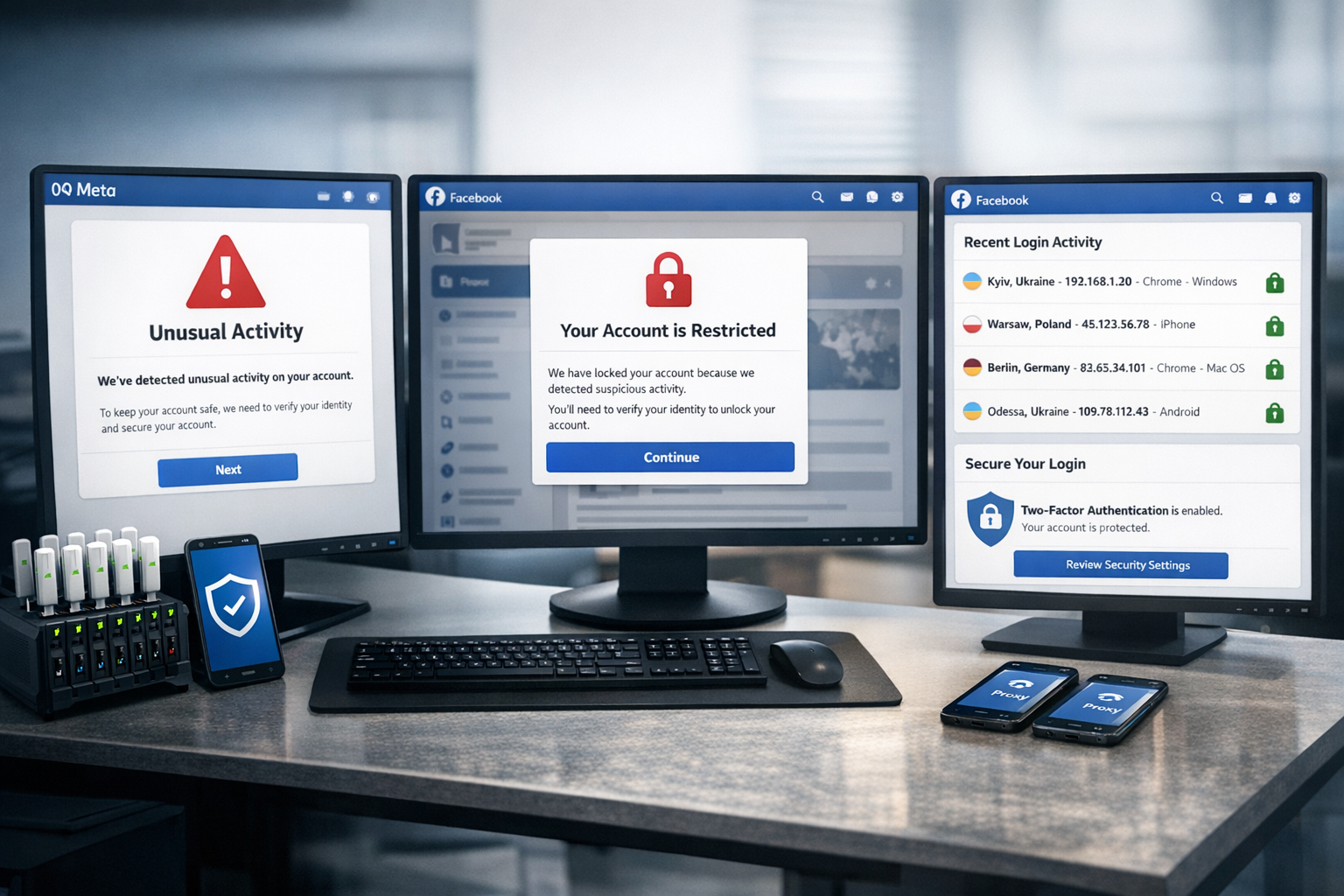
A Meta/Facebook warning like “We noticed unusual activity” usually means one thing: the security system detected a login or business-management pattern that doesn’t match your normal behavior and temporarily slows down access to prevent a potential takeover.
In 2026 this is especially visible in Business Suite and Ads Manager. You can work compliantly and still get flagged if your access pattern looks like an attacker’s workflow: location jumps, unstable IPs, different devices, quick changes to roles or payments. Practical restriction breakdowns note that unusual activity is often tied to logins from unfamiliar locations and/or unexpected changes to business assets.
Why IP address is such a common trigger
For fraud detection, IP is a fast “where are you coming from” signal. It’s not the only one, but it’s influential because it helps estimate:
- geography (country/city and sudden jumps);
- network type (mobile, residential ISP, datacenter, corporate ASN);
- reputation (whether the IP range is associated with bots/spam);
- consistency with your account’s historical logins.
If your account typically logs in from one region and provider, and you suddenly appear from a different country or a network that looks like VPN/datacenter traffic, the pattern resembles compromise. Practitioner-oriented guides often recommend avoiding frequent device and IP changes to reduce security prompts.
Signals beyond IP that amplify risk
The same IP change can be fine or risky depending on context. “Unusual activity” is most often triggered by a combination of signals:
- Device/browser changes: different browser, a fresh profile with no cookies, different user agent or system environment.
- Session resets: incognito mode, frequent cookie clearing, repeated logins.
- Parallel logins: different cities/countries in the same day or simultaneous sessions from different networks.
- Rapid Business changes: adding admins, connecting partners, changing payment methods, domains, Pixels in a short window.
- High‑risk action patterns: sudden spend spikes, mass campaign creation, unusually frequent actions.
Meta can also limit Business features (not only ads) when it detects suspicious activity. Practical reviews describe restrictions that look like a capability freeze: you may lose the ability to add people, create new ad accounts, or access certain features, with next steps shown in Business Support Home.
What restrictions typically look like in Business/Work
- Security check / checkpoint: login confirmation via code, 2FA, email/phone confirmation, sometimes ID/selfie.
- Account temporarily restricted: temporary limits on actions (ads creation, payment changes, etc.).
- Ad account restricted/disabled: enforcement on the ad account with a review/appeal flow.
- Asset-level access issues: specific Pages/Pixels/Catalogs may require extra verification.
Many recovery guides follow the same logic: check the reason and available actions in Business Support Home, complete verification, strengthen security (2FA), then submit a review request if available.
Why geo/device “ping‑pong” almost guarantees higher risk
If your account normally logs in from one city and then, in a single day, you log in via:
- a VPN in another country,
- a mobile network from a different carrier,
- RDP/server in a datacenter,
- plus a quick login from someone else’s laptop,
that’s a classic takeover-looking pattern. Attackers also try multiple entry points and then rush to change settings. The core rule for stability is consistency.
Build stable access: “one account = one environment”
The most practical approach is to give each account a stable set of identifiers: consistent IP/geo pattern, consistent device/browser profile, persistent sessions, and predictable admin behavior.
Step 1. Lock in a base environment (device + browser profile)
- Use one primary workstation (or one dedicated virtual workspace) for Business/Ads logins.
- Use one browser and a separate profile for Meta work.
- Avoid incognito mode and habitual cookie clearing.
- Update browser/OS on a schedule, not right before critical changes.
Step 2. Stabilize your IP strategy (stability ≠ one static IP forever)
Meta stability is about a predictable pattern:
- One region: keep logins within one country, ideally one region/city.
- One network type: residential, mobile, or corporate—avoid cycling through all of them.
- No sudden jumps: if you must change provider/country, do it gradually.
For remote teams, a simple solution is a single entry point (one controlled workstation/server) or a strict rule: manage Business/Ads only from the agreed environment. Practitioner guidance also emphasizes avoiding frequent IP/device changes and maintaining a stable browsing profile.
Step 3. Enable security without locking yourself out
- Require 2FA for everyone with access (authenticator app is preferable to SMS).
- Store backup codes securely and keep recovery email/phone up to date.
- Turn on login alerts and review active sessions regularly.
Security advice in 2026 highlights 2FA, monitoring device logins, and revoking unused app access.
Another trend is passkeys (device-based authentication). Meta has reported Facebook passkey support in its mobile app as stronger protection against phishing, while keeping passwords and 2FA options.
Step 4. Reduce high‑risk moves inside Business Manager
- Keep admin count low and follow least‑privilege roles.
- Avoid adding/removing users in bursts; do it gradually from the base environment.
- Don’t change payment methods right after a security check.
- Audit people/partners/integrations regularly.
Incident-response checklists commonly recommend reviewing “where you’re logged in,” changing password, logging out all sessions, enabling 2FA, and removing unknown people/partners in Business Manager.
If you use proxies: what matters for Meta
- Stable geo: assign one country/region per account; avoid daily country hops.
- Human-like networks: residential/mobile IP ranges often look more natural than datacenter ranges.
- Environment binding: one browser profile plus one IP logic; avoid accidental mixing.
If you rely on mobile proxies, configure rotation so it doesn’t break sessions. Changing IP mid-session in Ads Manager can trigger additional checks; changing between sessions with pauses is safer.
IP reputation in plain terms: why one IP works and another triggers checks
Meta evaluates whether your network looks like real user traffic. Roughly, there are three groups:
- Residential ISP: mass consumer ranges; usually the most natural.
- Mobile (4G/5G): carrier ranges (often behind NAT); commonly seen as phone traffic.
- Datacenter: hosting/server ranges; typically higher-risk for fraud systems.
Problems appear when your login chain resembles automation (datacenter today, VPN tomorrow, mobile IP from another country next). That’s why practitioner advice often stresses stable browsing profiles and network consistency.
Safe migration to a new IP or country
If you must change IP/geo, don’t pair it with sensitive business changes on the same day:
- Day 1: log in from the new IP with minimal activity.
- Days 2–3: low-risk operations.
- Day 4+: only after stable logins, proceed with roles, partners, payment changes.
This matches the typical recovery logic: complete checks and strengthen security first, then submit review requests and proceed with sensitive actions.
Common mistakes that increase risk even with a “good” IP
- Shared Wi‑Fi + many accounts: one café/office IP used by many accounts can look suspicious.
- Too many extensions: some resemble automation tools or interfere with page loading.
- Instant scaling: sudden budget/campaign spikes right after adding users or payments.
- No recovery plan: missing 2FA, backup codes, or updated recovery contacts.
Also consider phishing. Meta is pushing stronger protections (including passkeys), but users still lose accounts by entering passwords on fake pages. A clear incident procedure—sessions, logout everywhere, 2FA, access audit—remains critical.
If “unusual activity” already happened: what to do
- Stop the chaos: avoid jumping between VPNs/devices; don’t rush business changes.
- Regain control: change password, log out all sessions, confirm 2FA, audit users/partners.
- Check Business Support Home: reason, available actions, and review steps.
- Prepare documentation: identity/business proof and a concise explanation of the unusual login reason.
- Appeal once, well, instead of repeating the same request.
Future-proof checklist
- One account = one browser profile = one IP/geo pattern.
- 2FA for all + backup codes + session monitoring.
- Minimize sensitive changes (roles, partners, payments), especially after alerts.
- Geo changes should be gradual.
- Review connected apps/integrations regularly.
FAQ
Is a static IP enough?
It can help, but it’s not a silver bullet. Stability across signals (device, cookies, behavior) matters more than a single parameter.
Why can it trigger even within one city?
Because other signals may change: IP reputation, browser profile, behavior anomalies, or third-party login attempts.
How do remote teams handle this?
Use a single controlled entry point, or enforce strict separation: each account has a dedicated environment and stable geo/IP pattern.
How do I know it’s not just a false positive?
Review active sessions, contact changes, new admins/partners, new campaigns and spend. If anything is unfamiliar, treat it as an incident.
Team policy: a small amount of discipline prevents most lockouts
With multiple people in a Business portfolio, “login chaos” happens by default. A lightweight policy helps:
- Who logs in: named users and roles only; avoid temporary admins.
- Where they log in: one agreed environment (device + browser profile) and one network type.
- When to do sensitive actions: roles/partners/payments only after stable logins without alerts.
- What to do on an alert: stop changes, change password, log out sessions, confirm 2FA, audit access.
Quick case: why “a quick phone login” can be the final trigger
A common pattern: an account is stable from one laptop and one ISP. Then someone “just checks on the phone” via another carrier and, at the same time, adds a new user in Business Manager. From an anti‑fraud perspective it’s two anomalies back-to-back: a new device/IP plus a sensitive asset change. That combination increases the chance of a security check or temporary restrictions.